Enable Save Gallery Feature
The Save Gallery feature helps you collect and view various items from your game saves, giving you a comprehensive overview of your collection progress throughout the game.
Feature Overview
The Save Gallery feature scans game saves to identify and categorize all items you have collected, including Simple Items, Complex Items, and Mod Items. You can also compare different items and view detailed information.
Prerequisites
The Save Gallery feature depends on the NuGet Marketplace functionality.
Before using this feature, please refer to the Enable NuGet Marketplace documentation to complete the NuGet Marketplace enablement.
Install Dependencies and Enable
First, you need to install the relevant dependencies and enable the Save Gallery feature. Find this option in SuperDucky's feature list and click to install dependencies and enable.
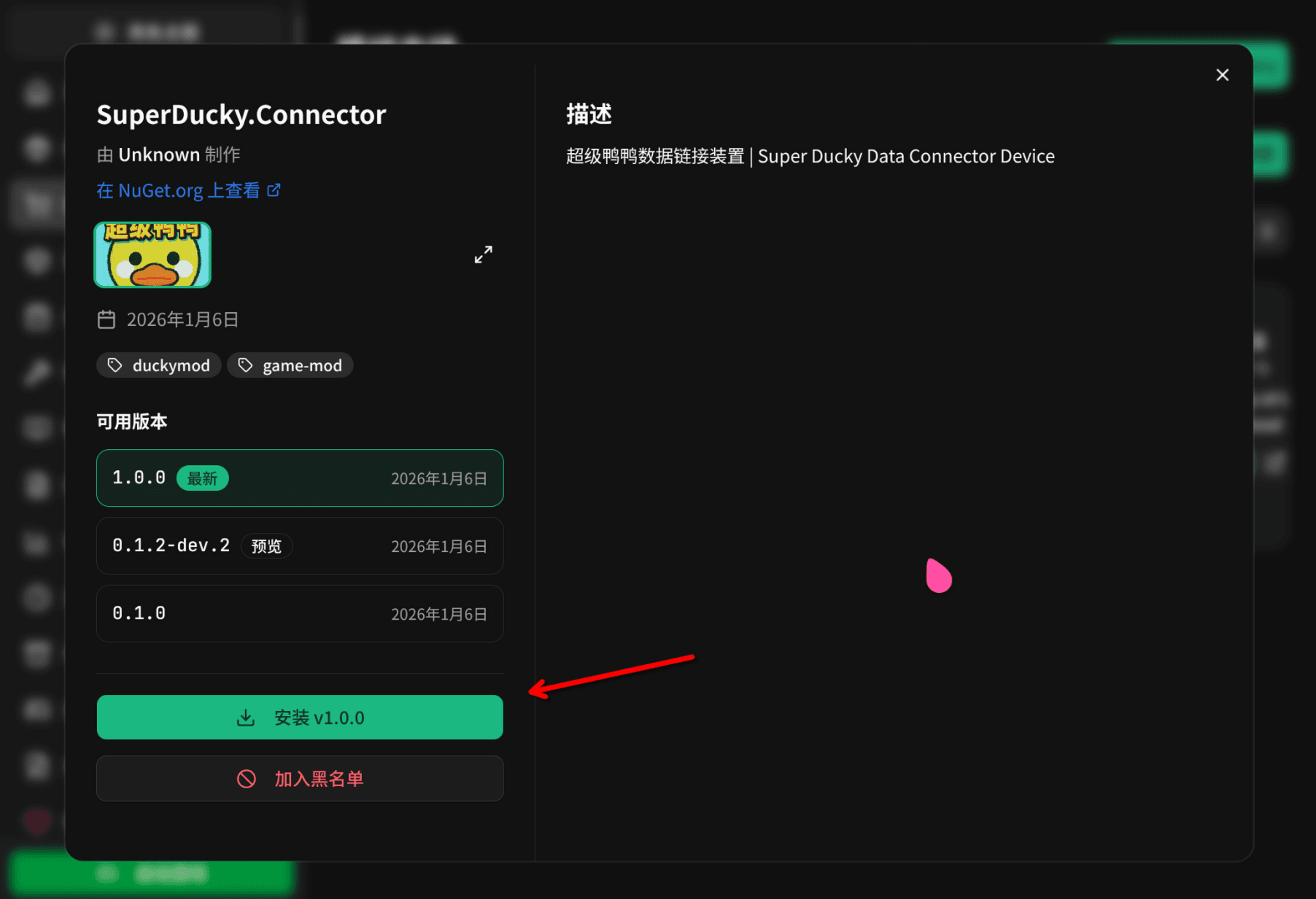
Enable Feature
After the dependencies are installed, find the Save Gallery option in the feature list and enable it.
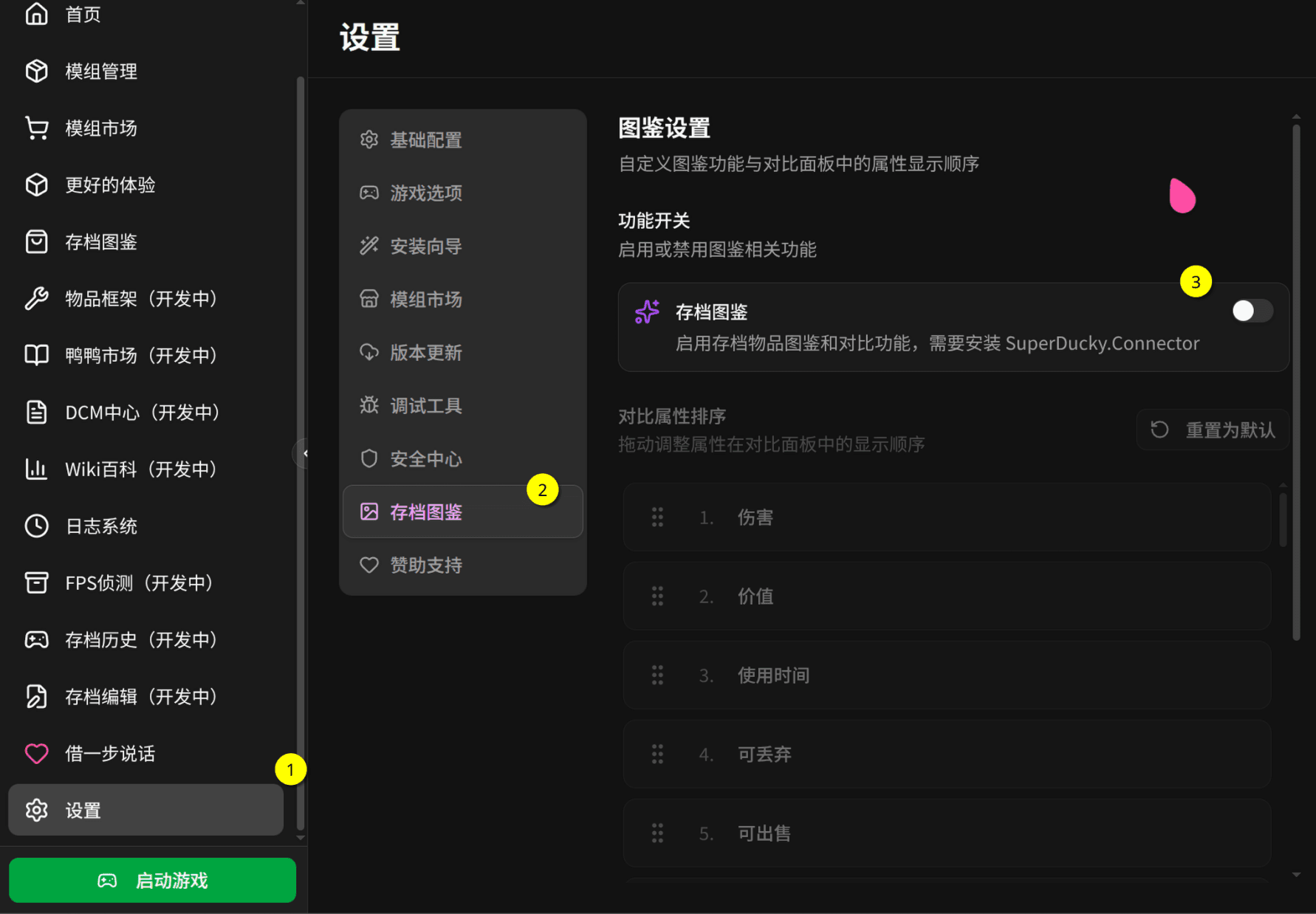
Important Notice
After enabling the Save Gallery feature and before previewing the gallery, please make sure to log in to your game save and play for about 2 minutes.
This ensures:
- Game data is properly written to the save
- Related image resources are fully loaded
- The Gallery feature can properly retrieve and display content
If you preview directly without entering the save to play first, the gallery content may not display properly or may be missing data.
Gallery Preview
After enabling, you can view the gallery interface, which displays all item categories you have collected.
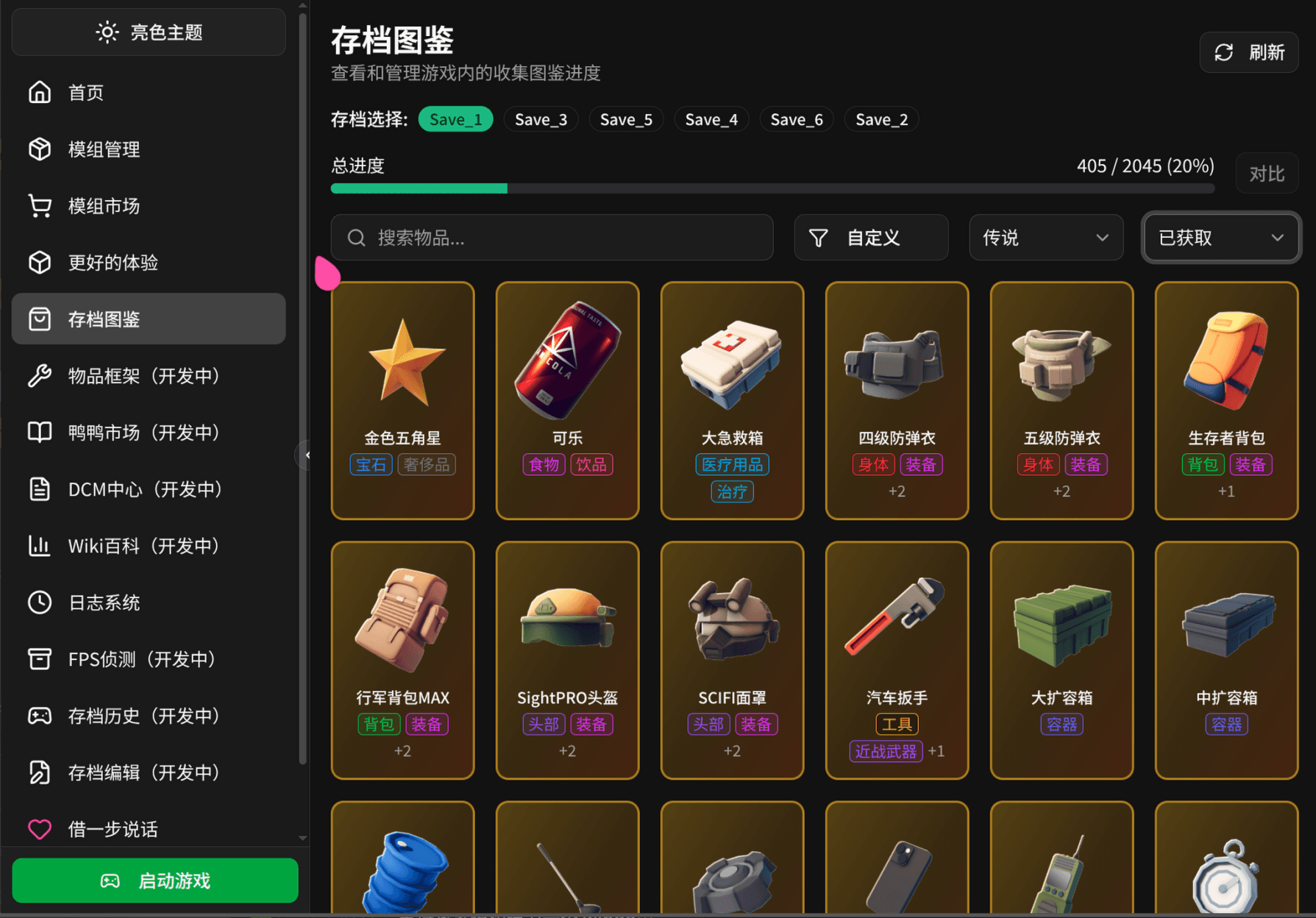
Item Comparison
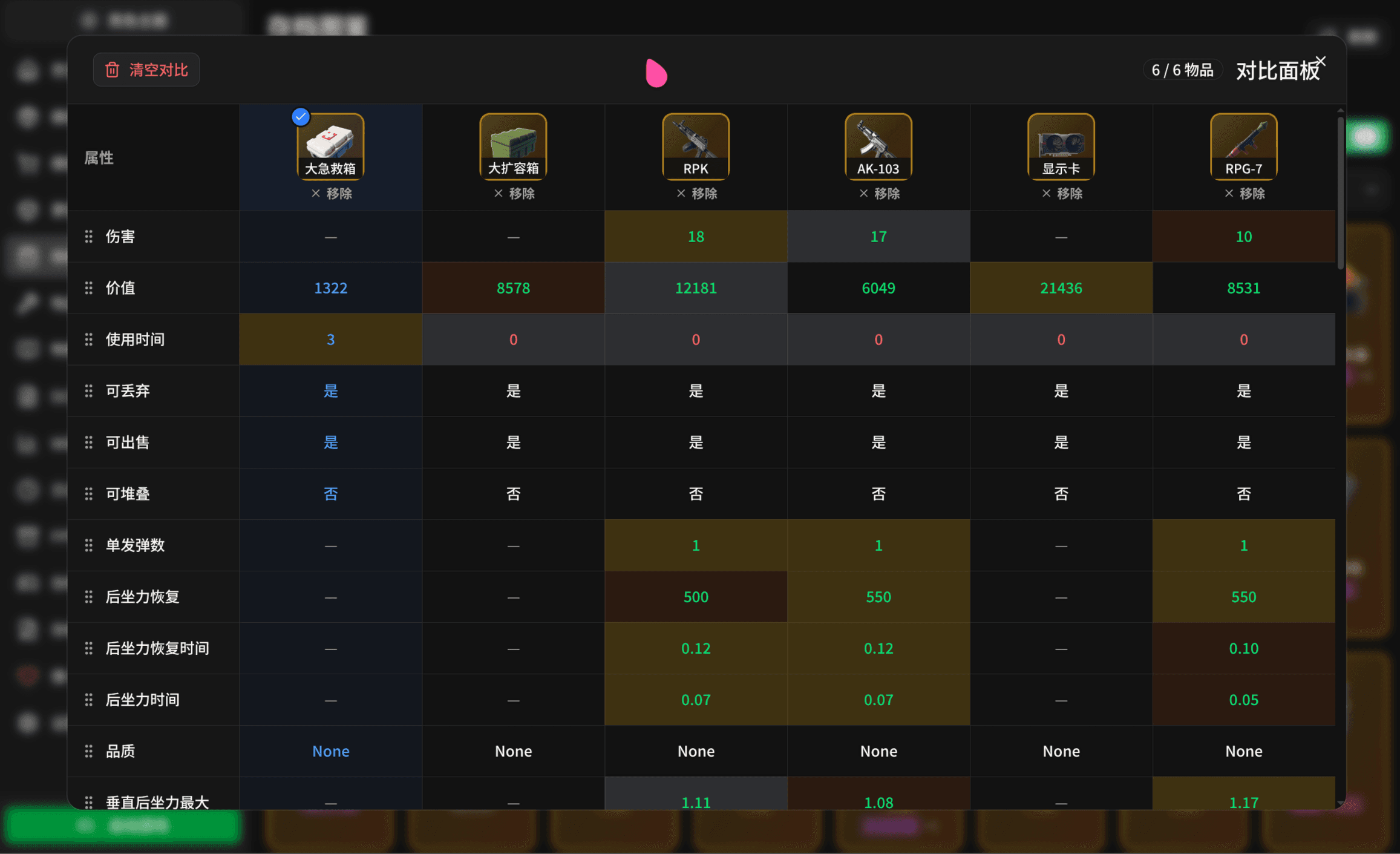
The Gallery feature supports comparing different items to help you understand attribute differences between them.
Add Items for Comparison
You can add items to comparison in two ways:
- Right-click on an item and select the "Add to Comparison" option
- Left-click on an item to enter the details page, then click the "Add to Comparison" button in the details page
View Comparison
After adding items for comparison, click the comparison button in the upper right corner of the list to view the comparison interface.
- You can add up to 6 items for comparison at a time
- You can select any item as the baseline for comparison, making it easy to visually view attribute differences
Item Types
The Save Gallery categorizes items into multiple types, each with its unique display method:
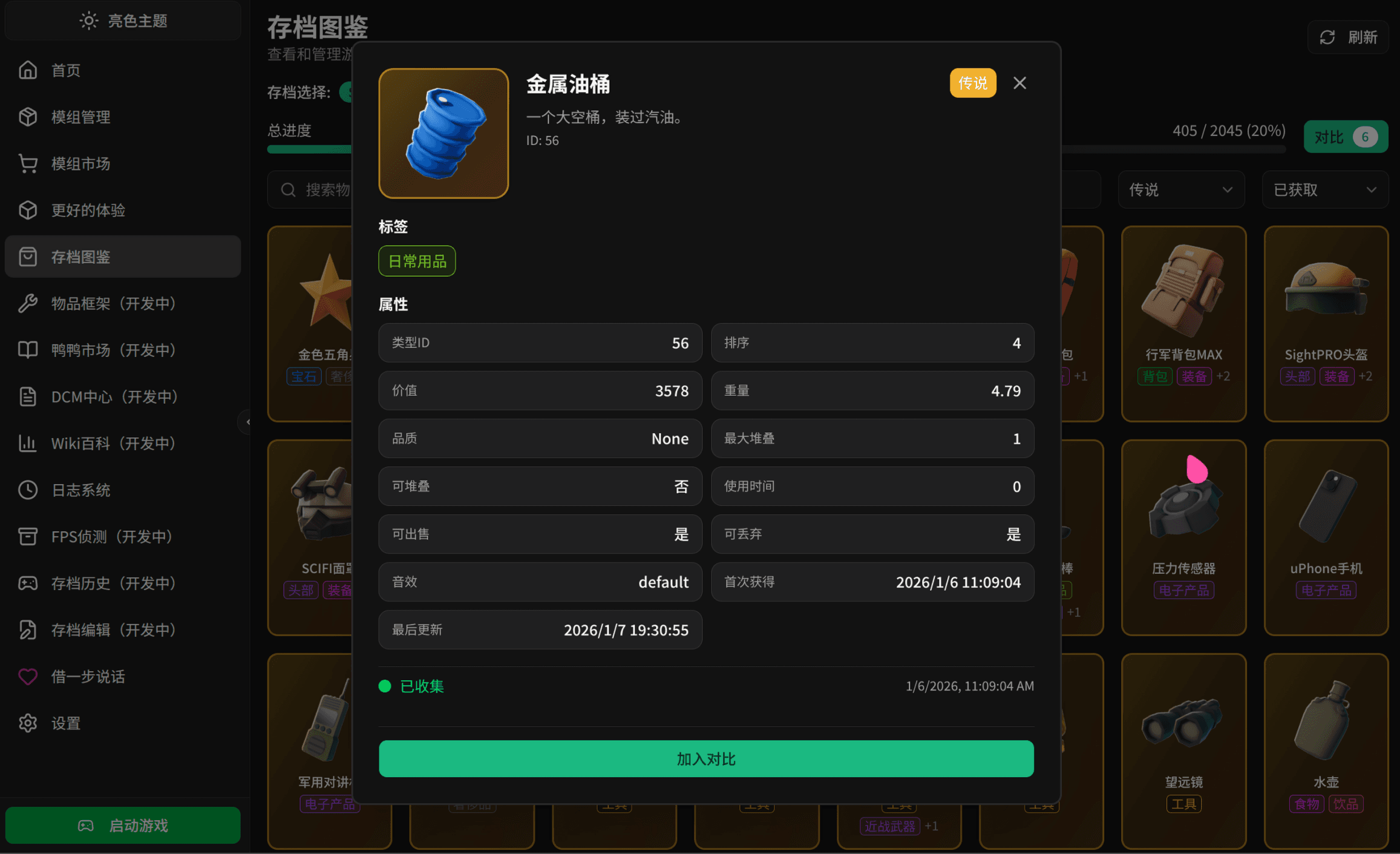
Simple Items
Simple Items are usually basic game props, displaying basic item information.
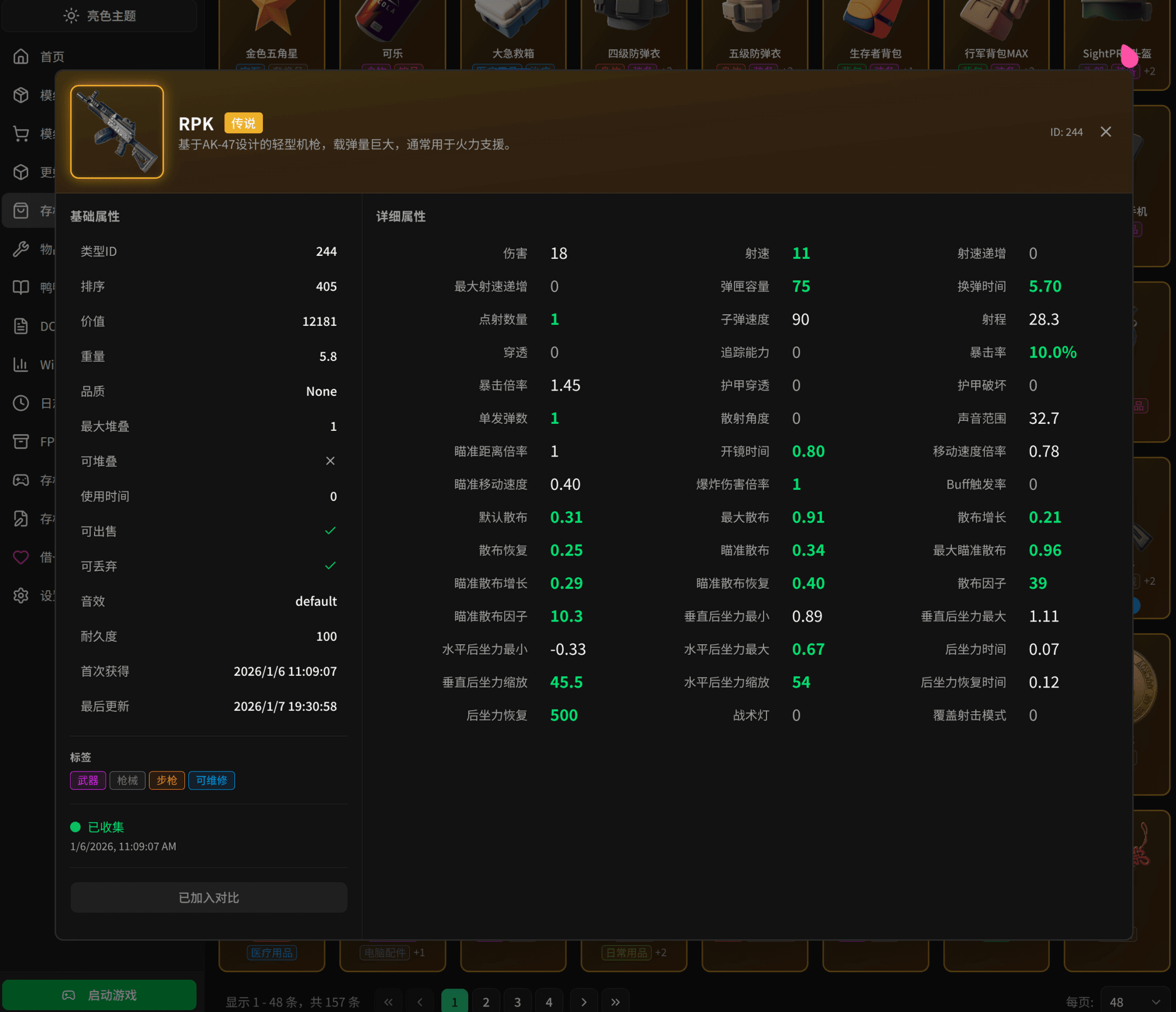
Complex Items
Complex Items have more attributes and detailed information. The gallery displays a complete attribute list.
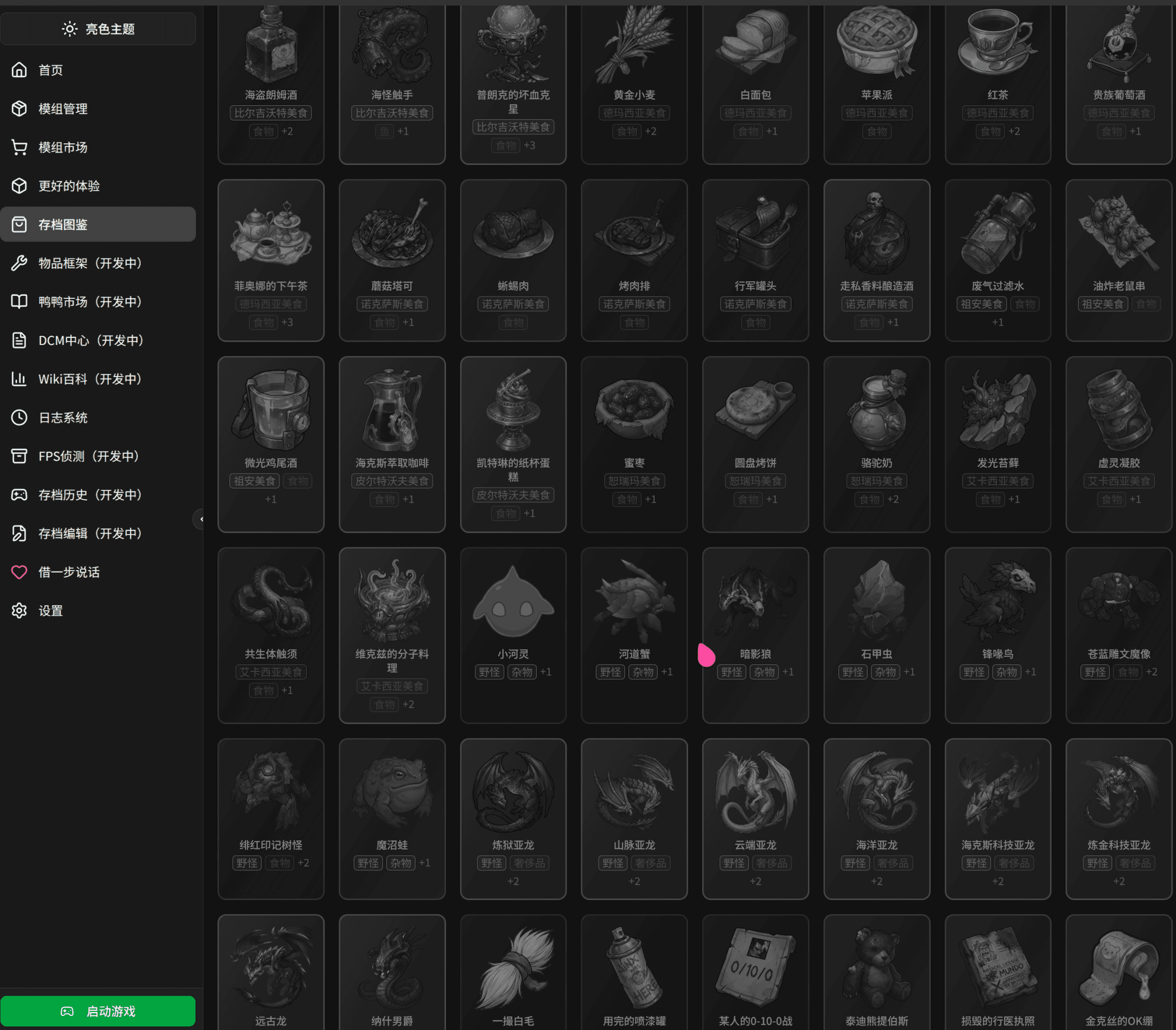
Mod Items
If you have game Mods installed, the gallery will also identify and display items added by Mods.
Usage Tips
- First-time enablement may require a longer time to scan saves
- The Gallery automatically updates to reflect the latest game progress
- Supports exporting gallery data in multiple formats
- You can use the Gallery search bar to quickly find specific items
- Supports searching by entering Item ID
- Supports searching by entering Item Name